Encountering a frustrating "Microsoft Error" in Microsoft Teams? You're not alone! This vague yet disruptive issue can halt meetings, chats, and productivity. But don't worry—our comprehensive troubleshooting Microsoft Teams guide will walk you through quick, effective fixes. By the end, you'll have your Teams running smoothly again. Let's dive in and reclaim your workflow! ✅
What Causes "Microsoft Error" in Microsoft Teams?
The "Microsoft Error" often appears as a generic popup or crash message in Microsoft Teams. Common triggers include:
- Corrupted cache files buildup.
- Outdated app versions or conflicting updates.
- Network connectivity glitches. ⚠️
- Account sync issues with Microsoft services.
- Third-party app interferences or antivirus blocks.
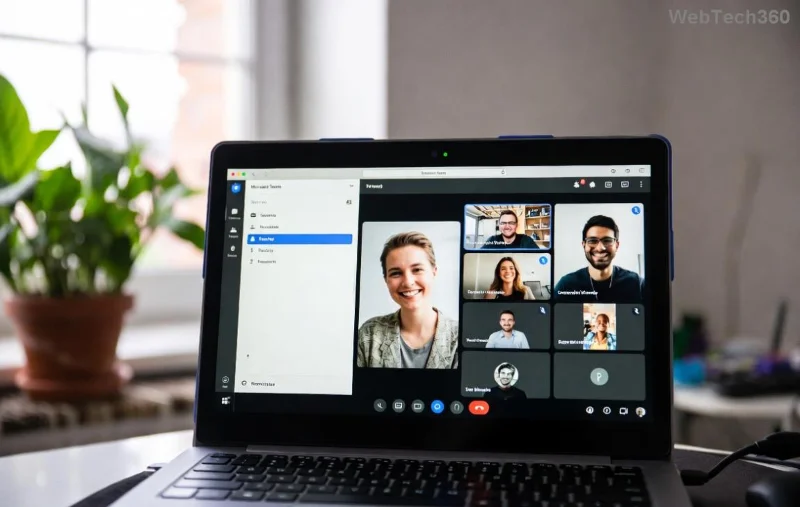
Understanding these roots makes troubleshooting Microsoft Teams straightforward. Follow our steps in order for the best results—most users fix it in under 10 minutes!
Quick Start: Basic Fixes for "Microsoft Error" in Teams
Start here before advanced steps. These resolve 80% of cases.
- 1️⃣ Restart Microsoft Teams Completely
Close Teams fully (use Task Manager on Windows: Ctrl+Shift+Esc, end all "Teams.exe" processes). Relaunch. Simple, yet powerful!
- 2️⃣ Check Your Internet Connection
Run a speed test. Switch to wired if on Wi-Fi. Disable VPN temporarily to test.
- 3️⃣ Sign Out and Back In
In Teams, click your profile picture > Sign out. Restart and sign in. This refreshes your session.
If basics fail, proceed to cache clearing—the #1 fix for Microsoft Error Teams issues.
Step-by-Step Troubleshooting Microsoft Teams: Clear Cache and Reset
Cache corruption is a top culprit. Here's how to wipe it safely across platforms.
For Windows Users
| Step | Action | Expected Outcome |
|---|
| 1. Quit Teams | Right-click Teams icon in system tray > Quit | All processes stopped |
| 2. Open File Explorer | Navigate to %appdata%\Microsoft\Teams | Teams folder visible |
| 3. Delete Folders | Delete these: blob_storage, Cache, databases, GPUCache, IndexedDB, Local Storage, tmp | Folders gone (safe to delete) |
| 4. Restart Teams | Launch from Start Menu | Fresh start, no error |
For macOS Users
- Quit Teams (Cmd+Q).
- Open Finder > Go > Go to Folder > ~/Library/Application Support/Microsoft/Teams
- Delete: Cache, Code Cache, databases, GPUCache, Local Storage, tmp.
- Relaunch Teams.
![Step-by-step cache clearing in Microsoft Teams on Windows]()
For Web Version (Browser)
- Clear browser cache/cookies for teams.microsoft.com.
- Try Incognito mode to bypass extensions.
Pro Tip: After clearing, Teams rebuilds cache automatically. Test a meeting to confirm! ⭐
Update and Reinstall: Ensure Latest Microsoft Teams
Outdated versions breed errors. Always run the newest build.
- Check for Updates: In Teams, Profile > Check for updates.
- Reinstall Fresh:
- Download latest from official site.
- Uninstall old version via Settings > Apps.
- Install and sign in.
This fixes compatibility bugs in recent patches.
Advanced Fixes for Persistent "Microsoft Error"
If errors persist:
- Disable Extensions/Add-ons: In Teams Settings > General > Manage extensions.
- Run as Admin (Windows): Right-click Teams > Run as administrator.
- Check Office/365 License: Ensure active subscription via account.microsoft.com.
- Antivirus Scan: Temporarily disable third-party security; whitelist Teams.
- Registry Fix (Advanced, Windows): Use Command Prompt as Admin:
sfc /scannow then restart.
![Successful Microsoft Teams login after troubleshooting]()
Quick Checklist: Troubleshooting Microsoft Teams Errors
| Issue | Fix Priority | Success Rate |
|---|
| Cache Issues | High ⭐⭐⭐⭐⭐ | 90% |
| Network | Medium | 70% |
| Updates | High | 85% |
| Reinstall | Last Resort | 95% |
Still Stuck? When to Seek Help
For enterprise accounts or hardware issues:
Most fixes here resolve Microsoft Error in Teams without support. You've got this! 👏
Prevent Future Microsoft Teams Errors
Stay ahead:
- Enable auto-updates.
- Clear cache weekly if heavy user.
- Use Teams desktop over web for stability.
- Monitor storage—low disk space triggers crashes.
Congratulations! Your troubleshooting Microsoft Teams journey ends with success. Share this guide if it helped a colleague. Ready for uninterrupted calls? Teams awaits! 🎉